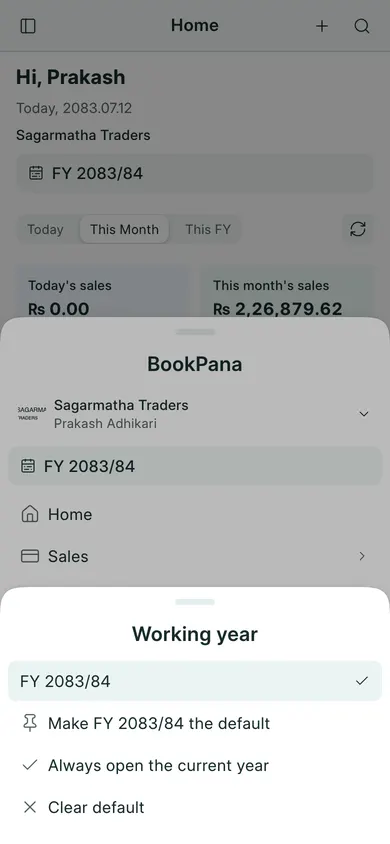
Choose the working year
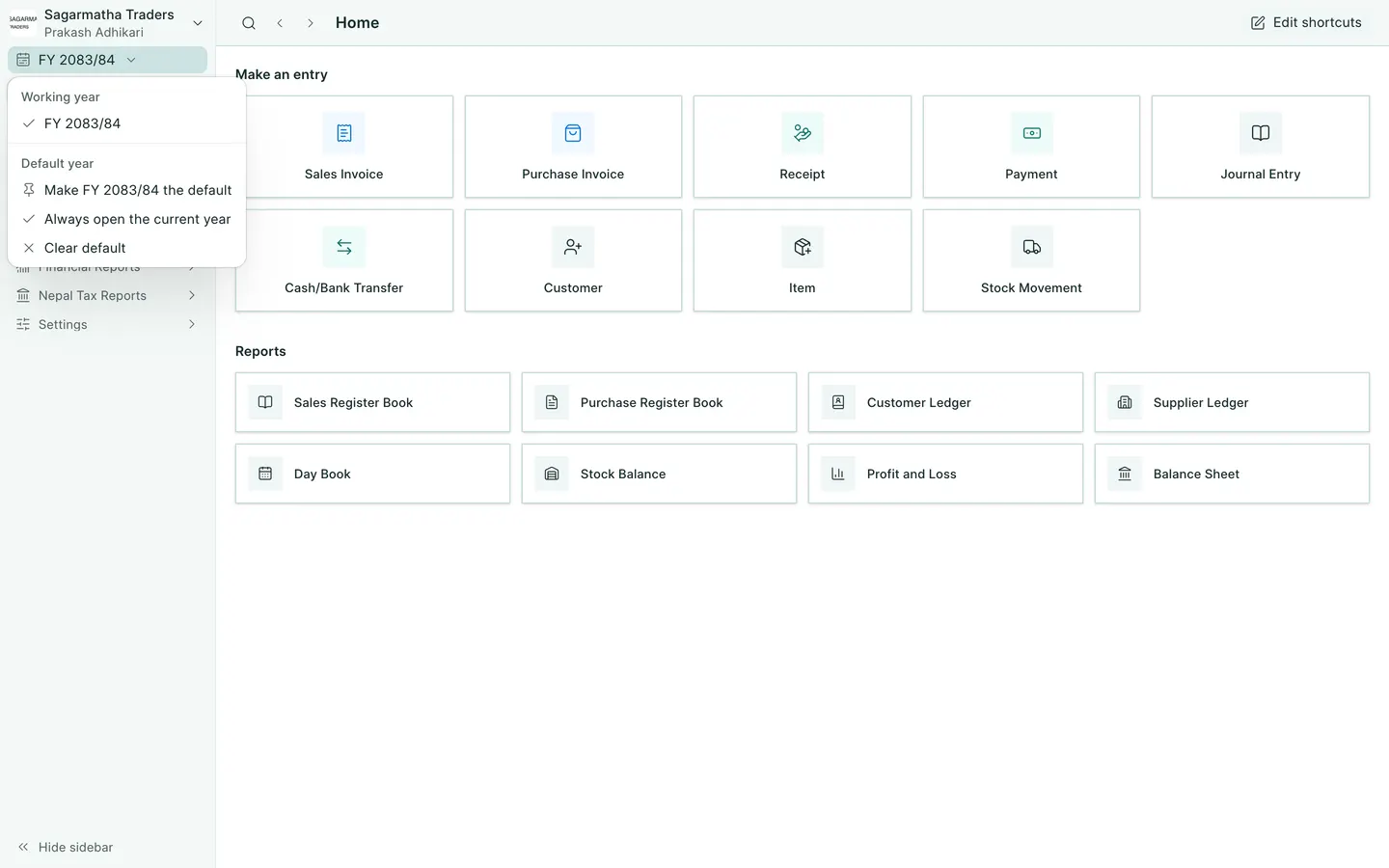
- Choose the fiscal-year button beside the company name. On a phone, open More and tap the working-year row.
- Select a year under Working year. Books reloads in that year. Check the year again before entering a transaction.
- To keep the choice for future tabs, choose Make … the default. To follow today’s year, choose Always open the current year.
- Choose Clear default if you want to be asked next time. The first-opening chooser has Always open this year for the same purpose.
Other open tabs keep their own working year. Changing one tab does not move existing invoices to a different year.
Close a finished year
A Books Manager can close a year that has ended. Finish or resolve its drafts and review the accounts first.
- On a computer, open the fiscal-year button and Close or reopen a year.
- Choose Close for the year you reviewed.
- Read the warning, then choose Close year only when ready.
A closed year remains available for viewing but blocks entering, changing, cancelling and deleting its vouchers. A Books Manager can use Reopen and Reopen year if authorised corrections are needed. Closing the year locks records; it does not itself create a profit-transfer journal or file a return.
In BookPana
Example screens use fictional demo data. Your records and available actions depend on your company and access.
See the phone layout: Working year selector