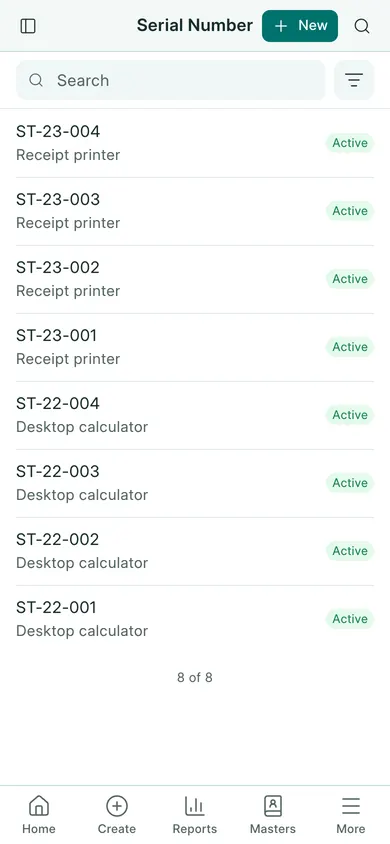
A batch groups units with the same batch identity. A serial number identifies one individual unit. Set tracking before entering the item’s stock transactions.
Set up tracking
- Open Settings → General Settings and choose Inventory.
- Enable Enable Batches or Enable Serial Number as needed, then save.
- Open Stock → Items and select the item. It must be a stock-tracked goods item.
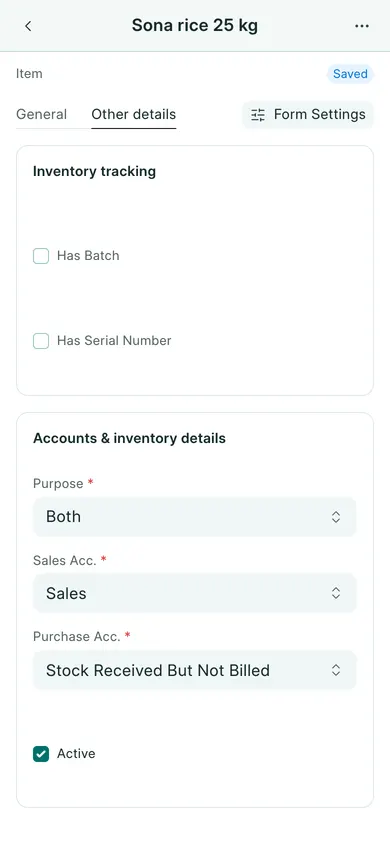
- Open Other details. Set Has Batch or Has Serial Number as needed and save the item.
- When receiving or issuing the item, fill its batch or serial details on the stock document. The serial count must match the units moved.
Review the records
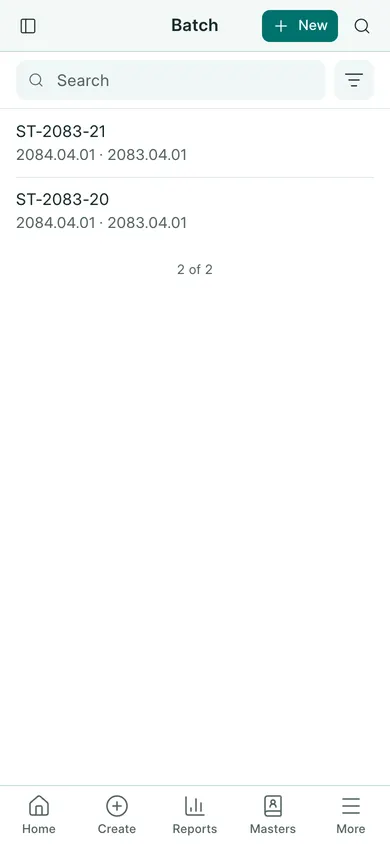
On a computer, use the app search to find Batch or Serial Number. You can also open a linked batch or serial number from an item’s stock transaction. Open a batch to review its dates, or a serial record to review its item and status. The examples below show the batch and serial lists.
Use Stock Ledger to trace the stock document. Do not change tracking on an item with existing transactions just to make an error disappear. Ask the owner to review the stock setup first.
In BookPana
Example screens use fictional demo data. Your records and available actions depend on your company and access.
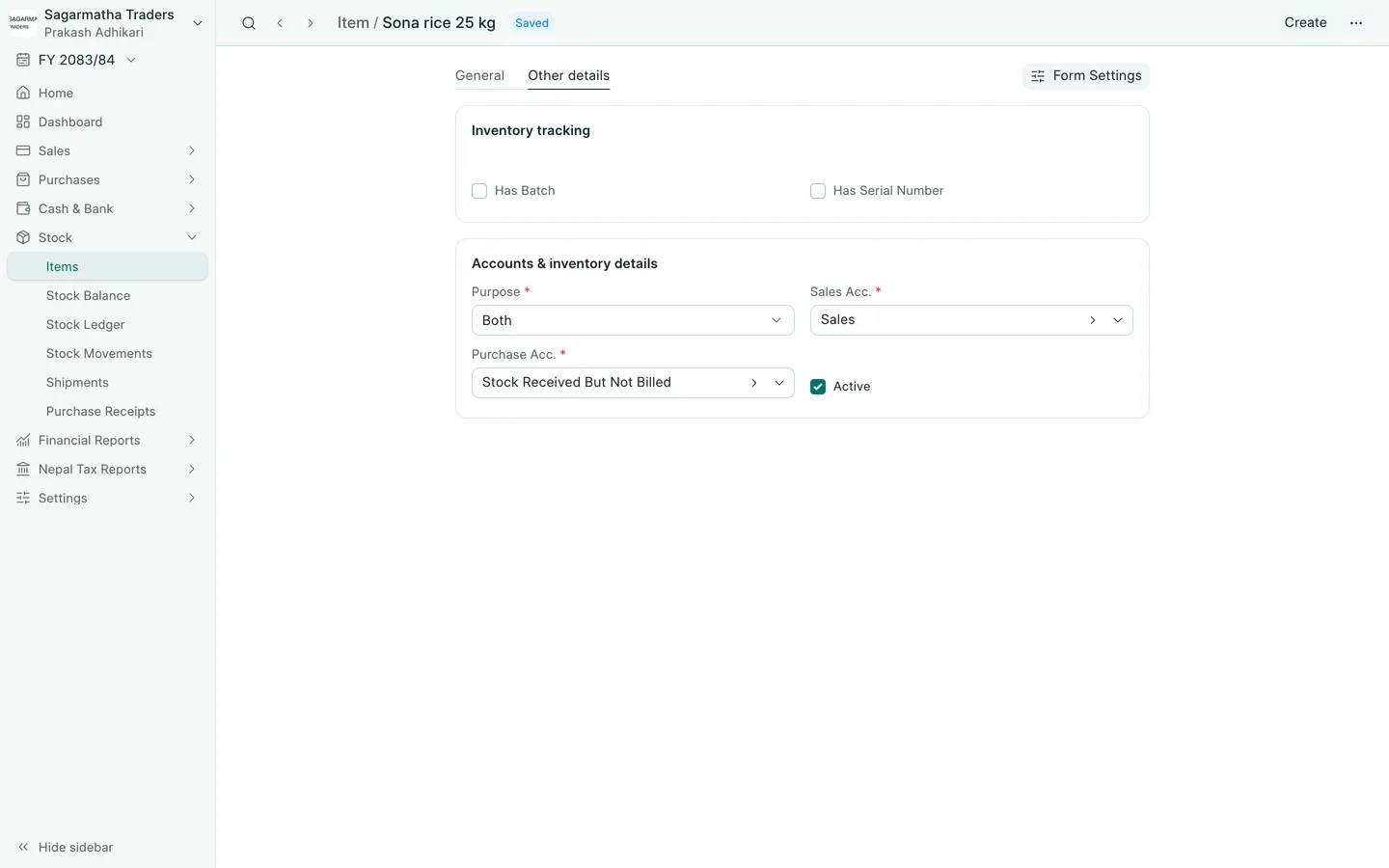
See the phone layout: Item inventory tracking
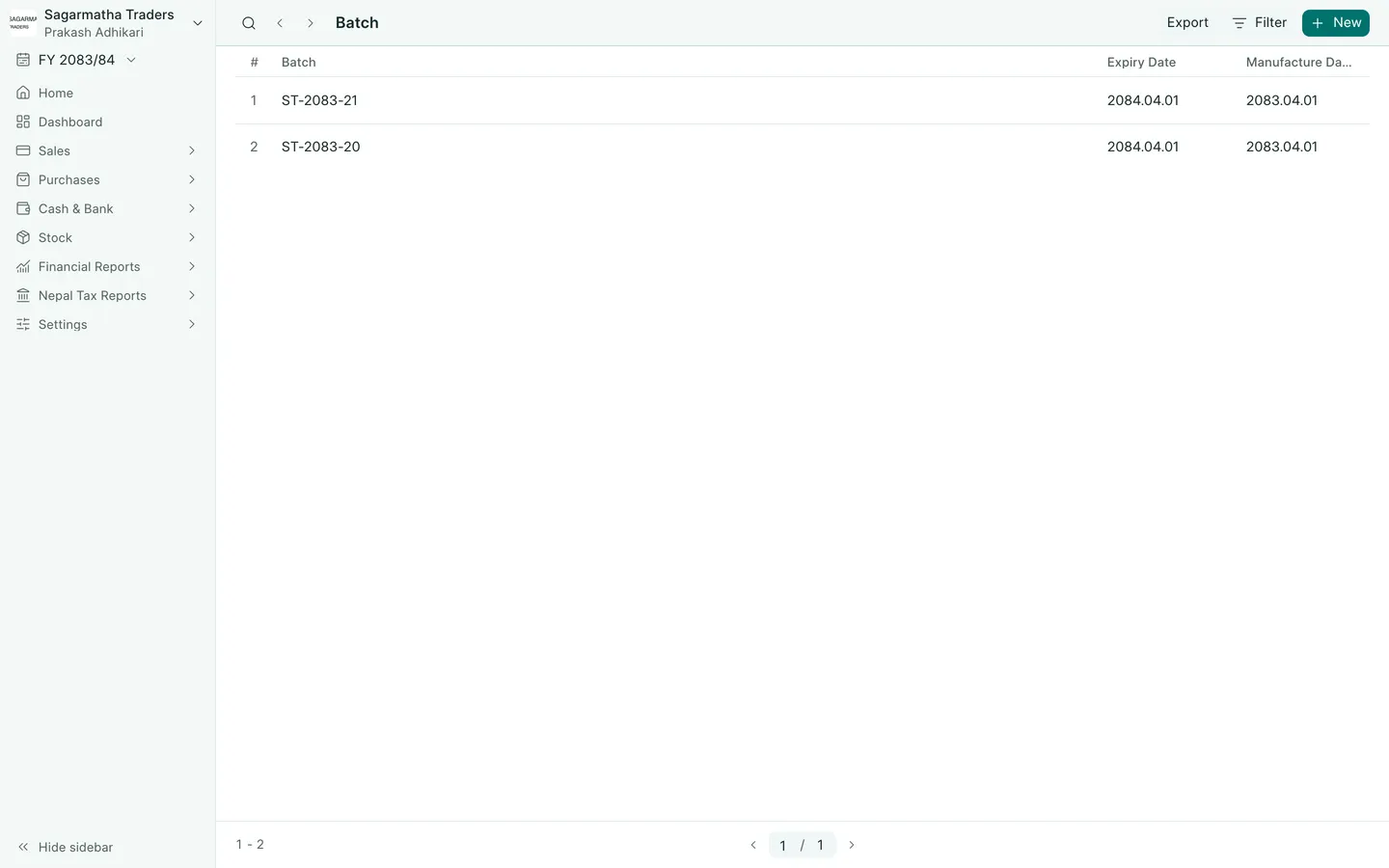
See the phone layout: Batch records
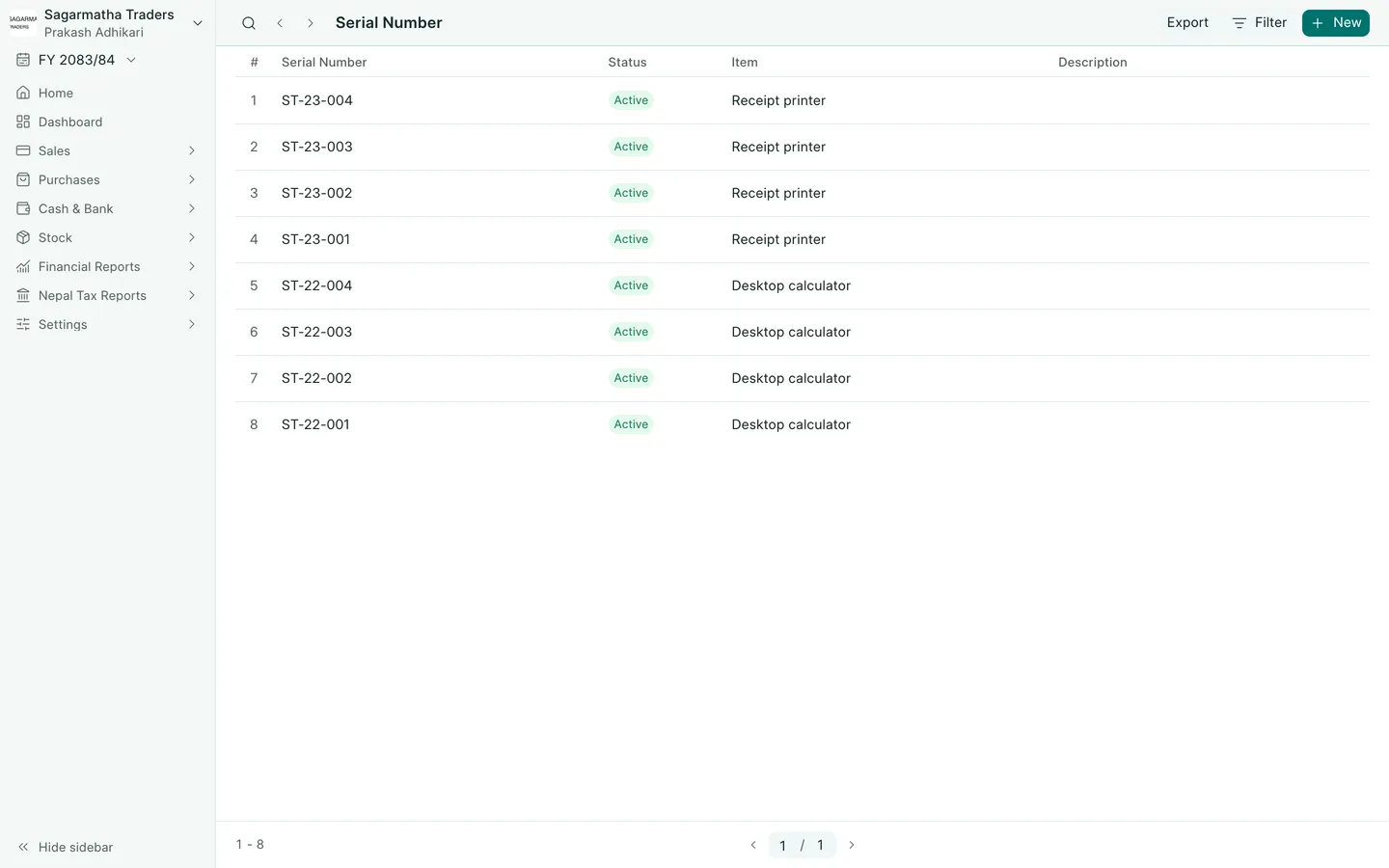
See the phone layout: Serial number records