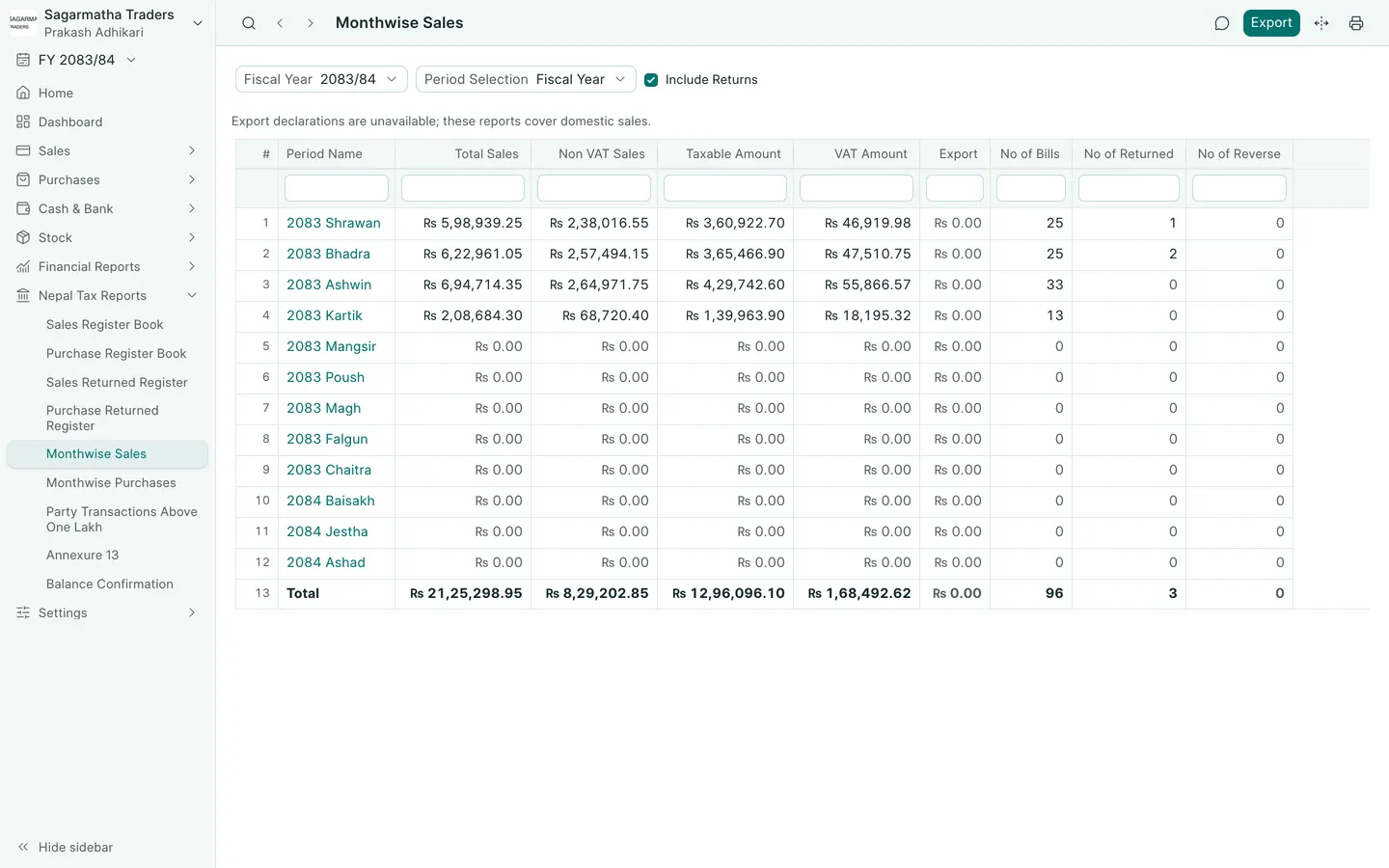
Read the monthly figures
- Open Nepal Tax Reports → Monthwise Sales or Monthwise Purchases.
- Check Fiscal Year in the report filters and whether Include Returns is enabled. Keep that choice consistent when comparing totals.
- Find the BS month you need. The Nepali fiscal year runs from Shrawan to Ashadh.
- Review the taxable, non-taxable and VAT columns and the total row.
- Compare the same month with the detailed sales or purchase book.
Reconcile before using the totals
Check submitted invoices and returns in the correct period. A draft does not count as a submitted transaction. If a total looks wrong, inspect the original invoice date, VAT template and return records rather than changing the report’s figures.
Use the print or export actions for a copy. BookPana gives you figures to review; it does not file the return. Ask your accountant to check the figures against your other records before using them for reporting.
In BookPana
Example screens use fictional demo data. Your records and available actions depend on your company and access.
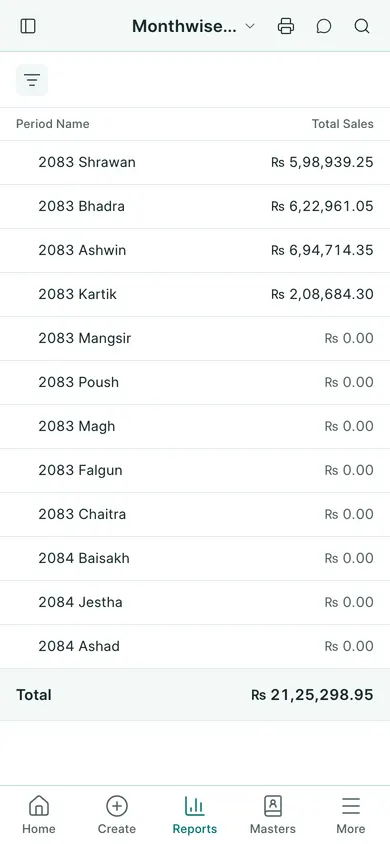
See the phone layout: Monthly sales figures
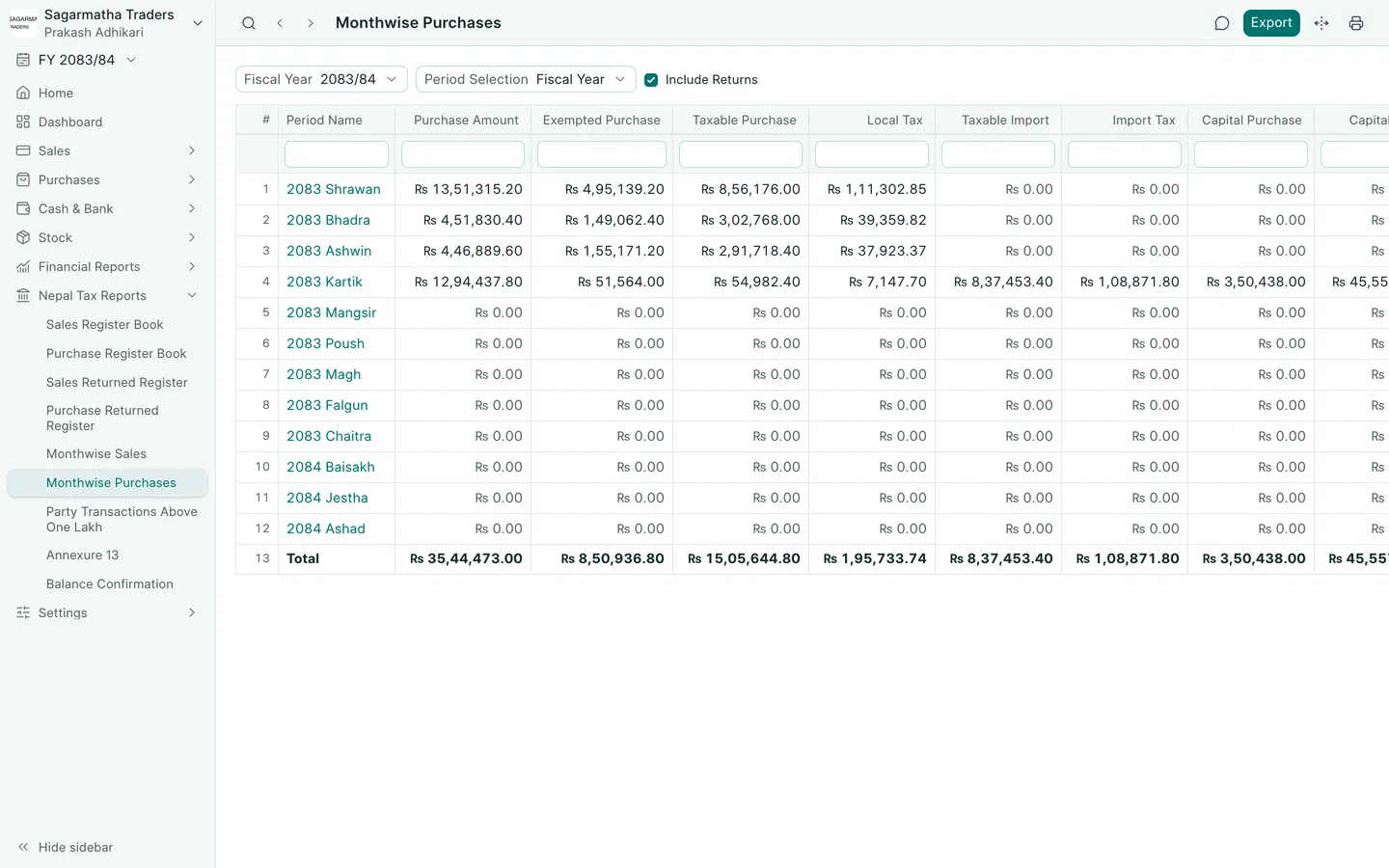
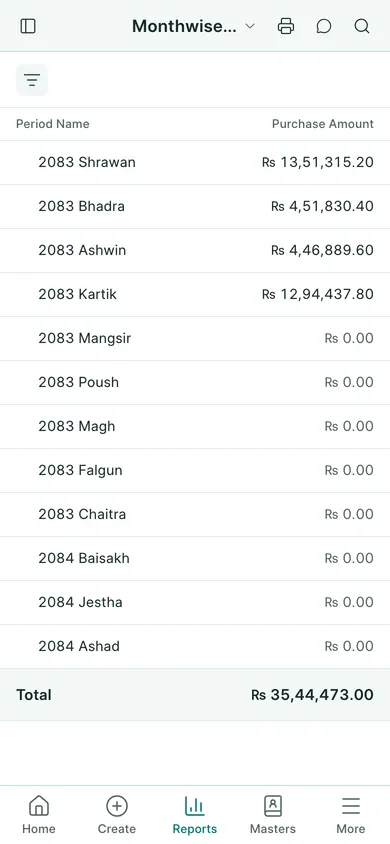
See the phone layout: Monthly purchase figures