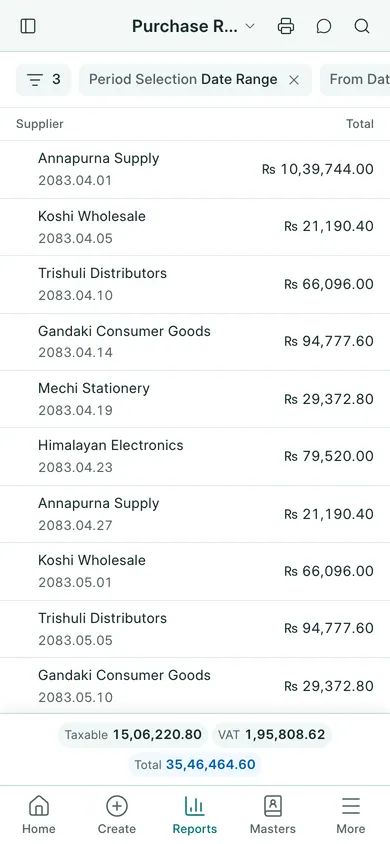
Open a register
- Open Nepal Tax Reports → Sales Register Book or Purchase Register Book. On a phone, choose the report in Reports.
- Choose the fiscal year or the date-range period option. If using a range, set its start and end dates.
- Review the invoice numbers, dates and party PAN or VAT details.
- Compare the taxable, non-taxable and VAT amounts with the original invoices and the report totals.
- Use Print to review a printable copy, or the export action when you need the rows in a file.
Review returns separately
Use Sales Returned Register for credit notes and Purchase Returned Register for debit notes. Do not erase a submitted invoice to remove a return from a book.
These reports read the records entered in BookPana. Check missing PANs, dates, tax templates and submitted status at the source document. The reports do not submit a VAT return for you. Have the accountant reconcile them before filing through the required process.
In BookPana
Example screens use fictional demo data. Your records and available actions depend on your company and access.
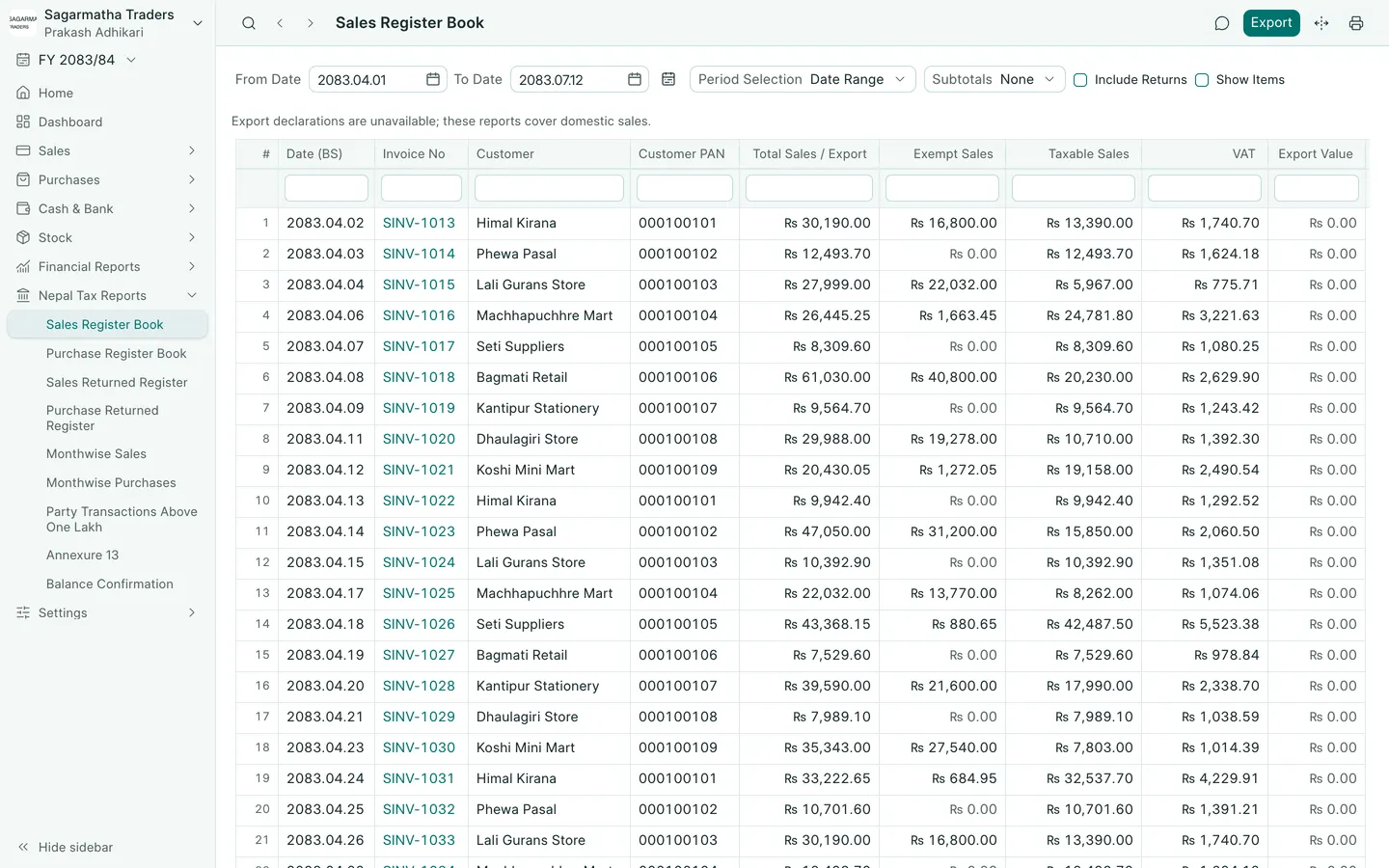
See the phone layout: Sales book
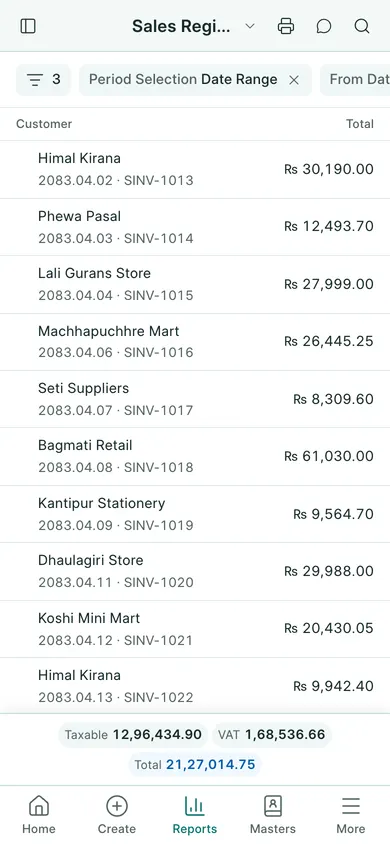
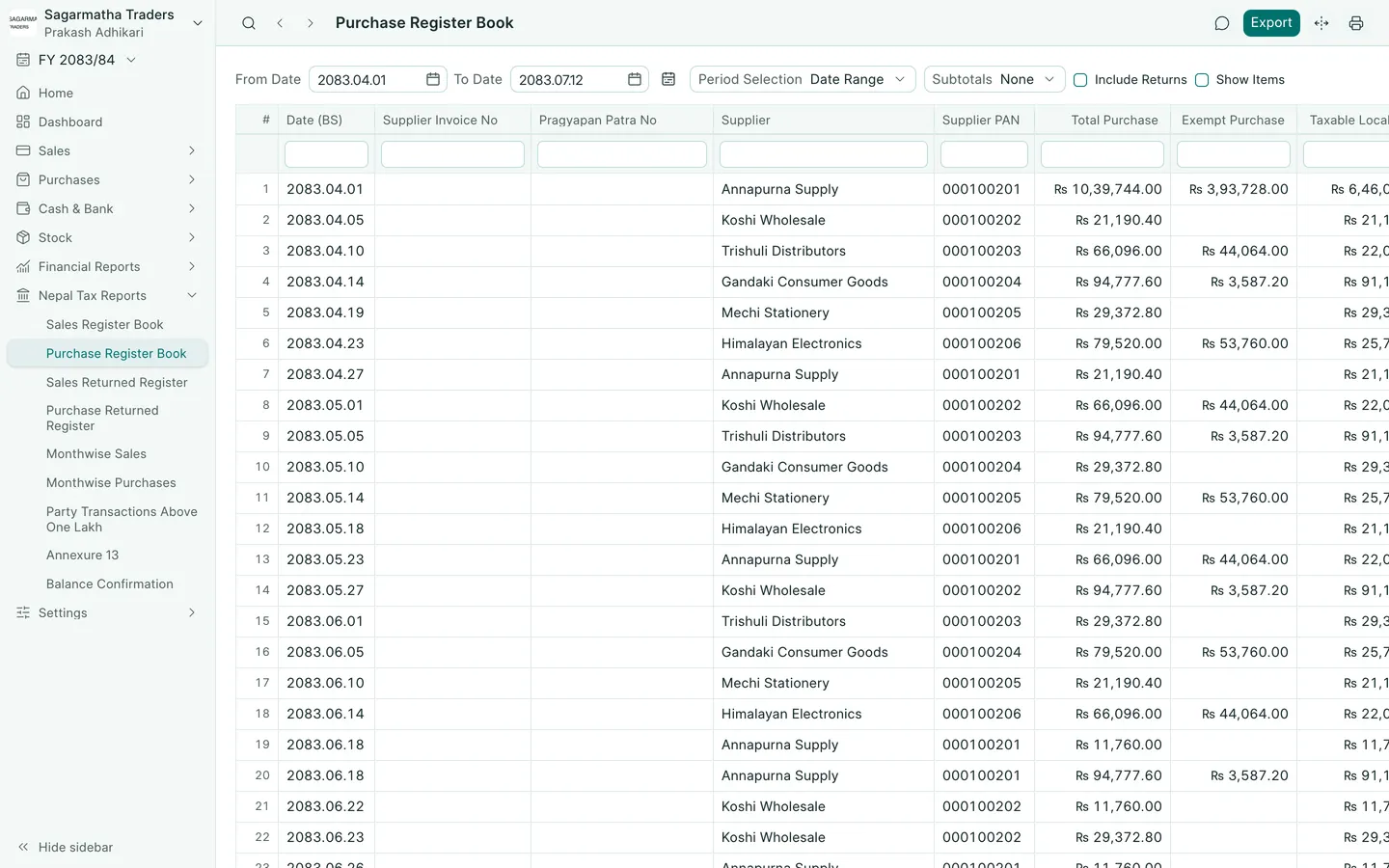
See the phone layout: Purchase book