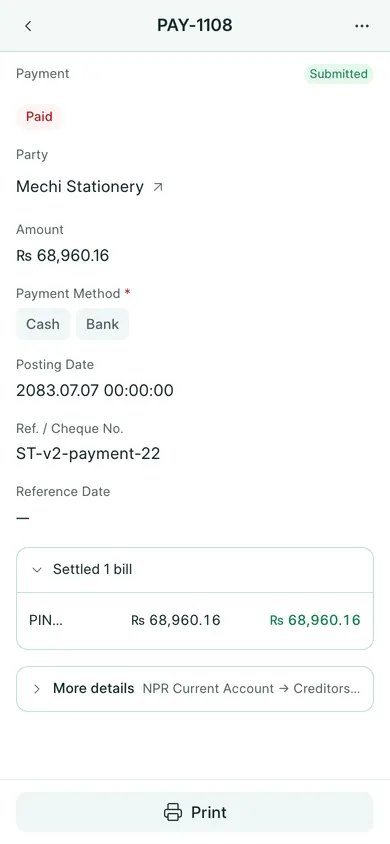
Record the payment
- Open Purchases → Payments → New. On a phone, use Create → Payment.
- Check Party and Amount. Enter the amount actually paid.
- Choose Cash or Bank, then the Payment Method for the account the money left.
- Check Posting Date, Ref. / Cheque No. and Reference Date.
- Expand the bills section and check the purchase invoice allocation. Keep a part-payment below the remaining bill amount.
- Choose Save, confirm Yes, then Submit and confirm.
To start from a particular submitted purchase invoice, choose its Create → Payment action, or tap Make payment at the bottom on a phone. It supplies the supplier and bill. On a computer the quick form uses Save Payment and Submit Payment.
Check the supplier balance
Check the submitted payment’s Settled bills summary. Open Purchases → Supplier Ledger for the supplier and date range, or reopen the bill to check its outstanding amount.
Paying a supplier does not enter another purchase invoice. Record the bill once and the payment once. Print or share the payment voucher if a copy is needed.
If your company uses Save & Submit, that button combines the draft-save and submission steps. Review the confirmation before continuing.
In BookPana
Example screens use fictional demo data. Your records and available actions depend on your company and access.
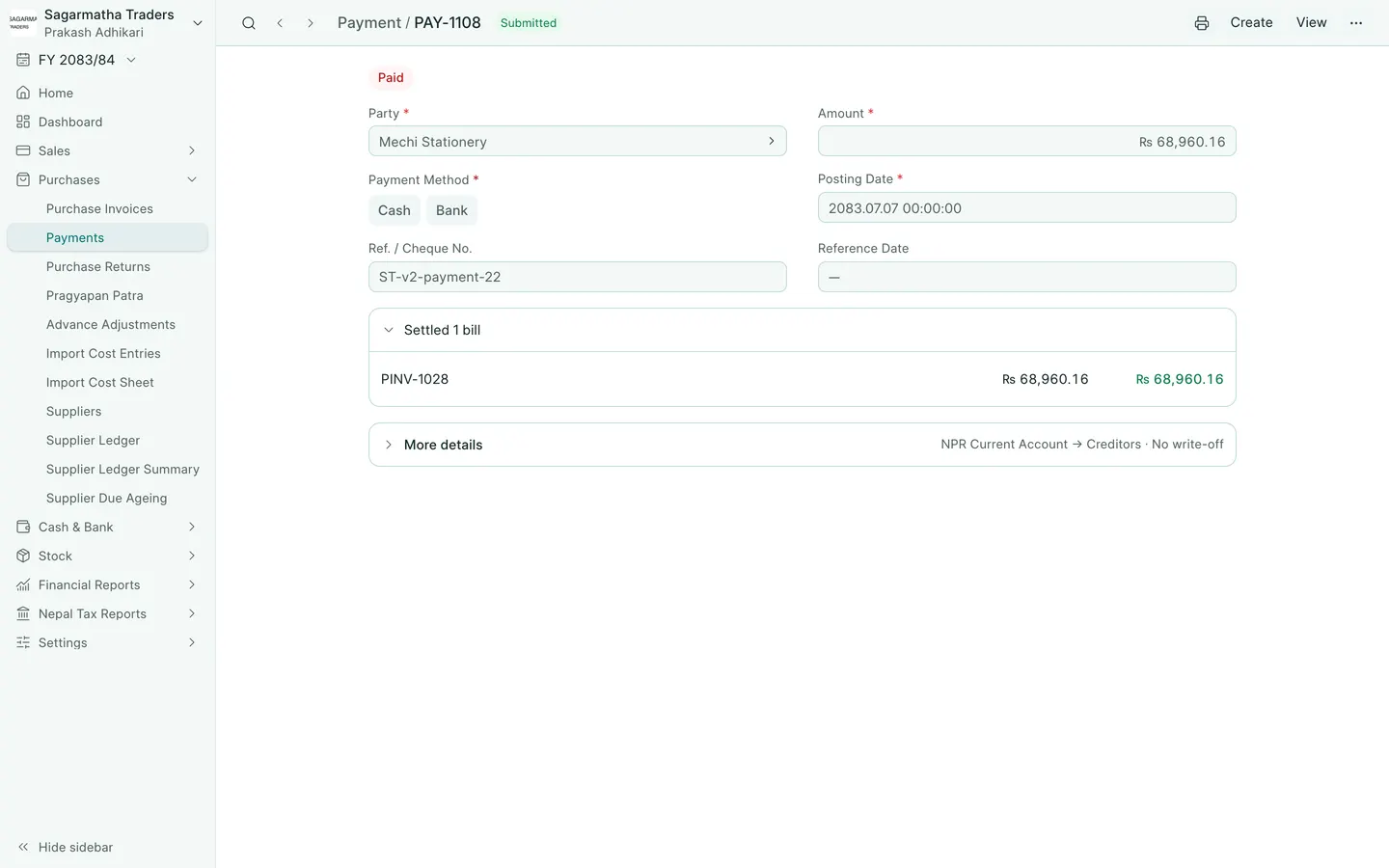
See the phone layout: Supplier payment