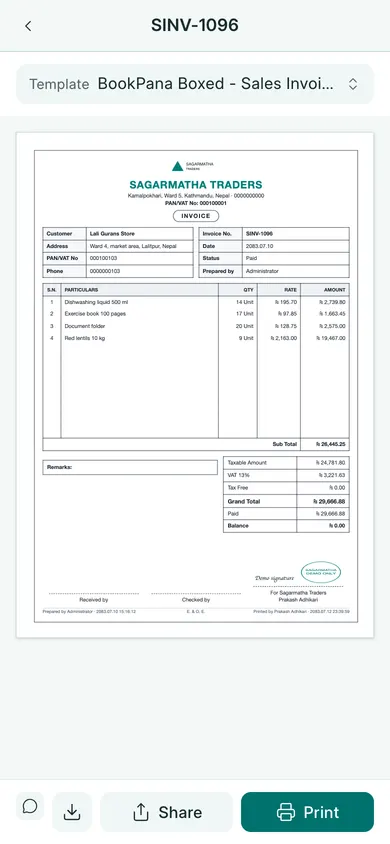
Choose a design
- Open the saved sales invoice. Choose Open print view on a computer, or Print on a phone.
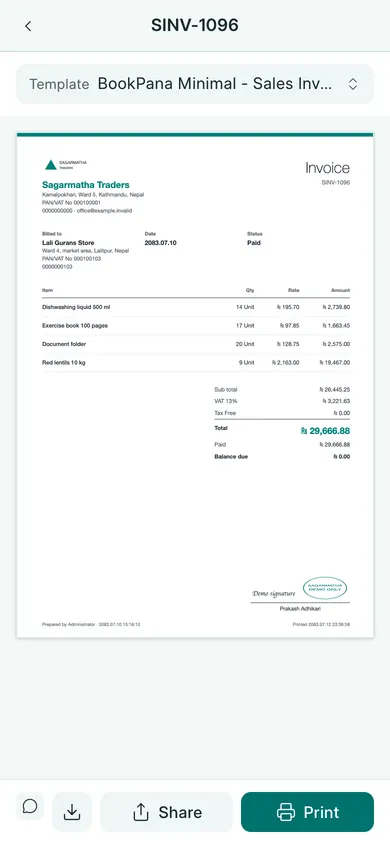
- In the print preview, open Template Name. On a phone, tap the Template button instead.
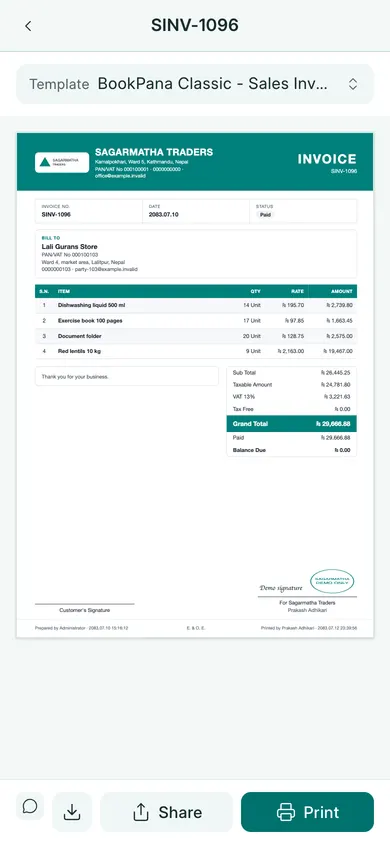
- Choose BookPana Classic - Sales Invoice, BookPana Minimal - Sales Invoice or BookPana Boxed - Sales Invoice.
- Wait for the preview to update. Check the company details, invoice number, date, items, VAT and total.
- Use the print control for paper or the PDF/download control for a file.
Check before sharing
The selected template changes the printed layout. It does not change the invoice’s saved accounts, quantities or amount.
Add your company’s logo, stamp and signature through print settings. If the preview is too small on a phone, open its phone example below or use the PDF copy to inspect the full page before sending.
In BookPana
Example screens use fictional demo data. Your records and available actions depend on your company and access.
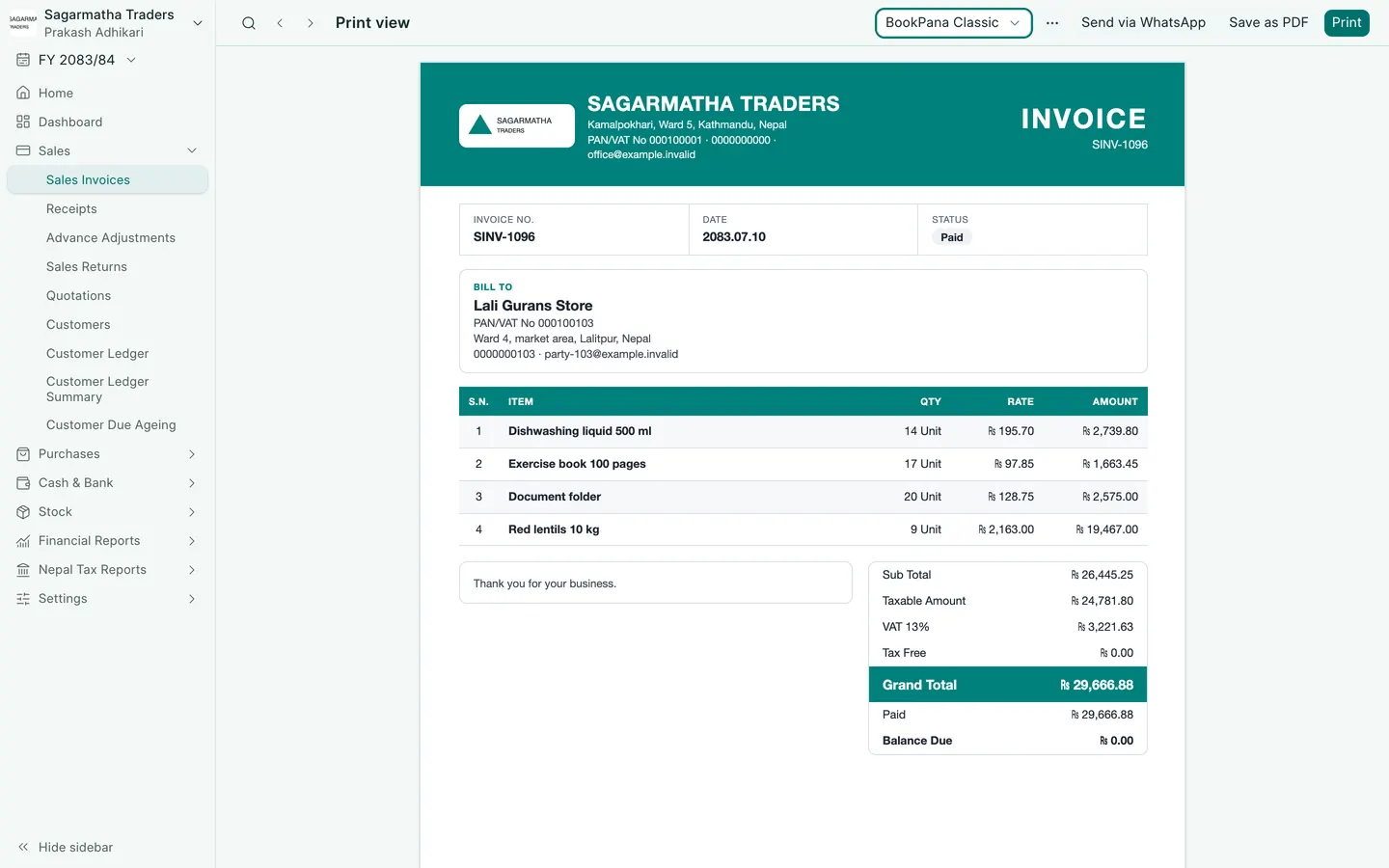
See the phone layout: Classic invoice
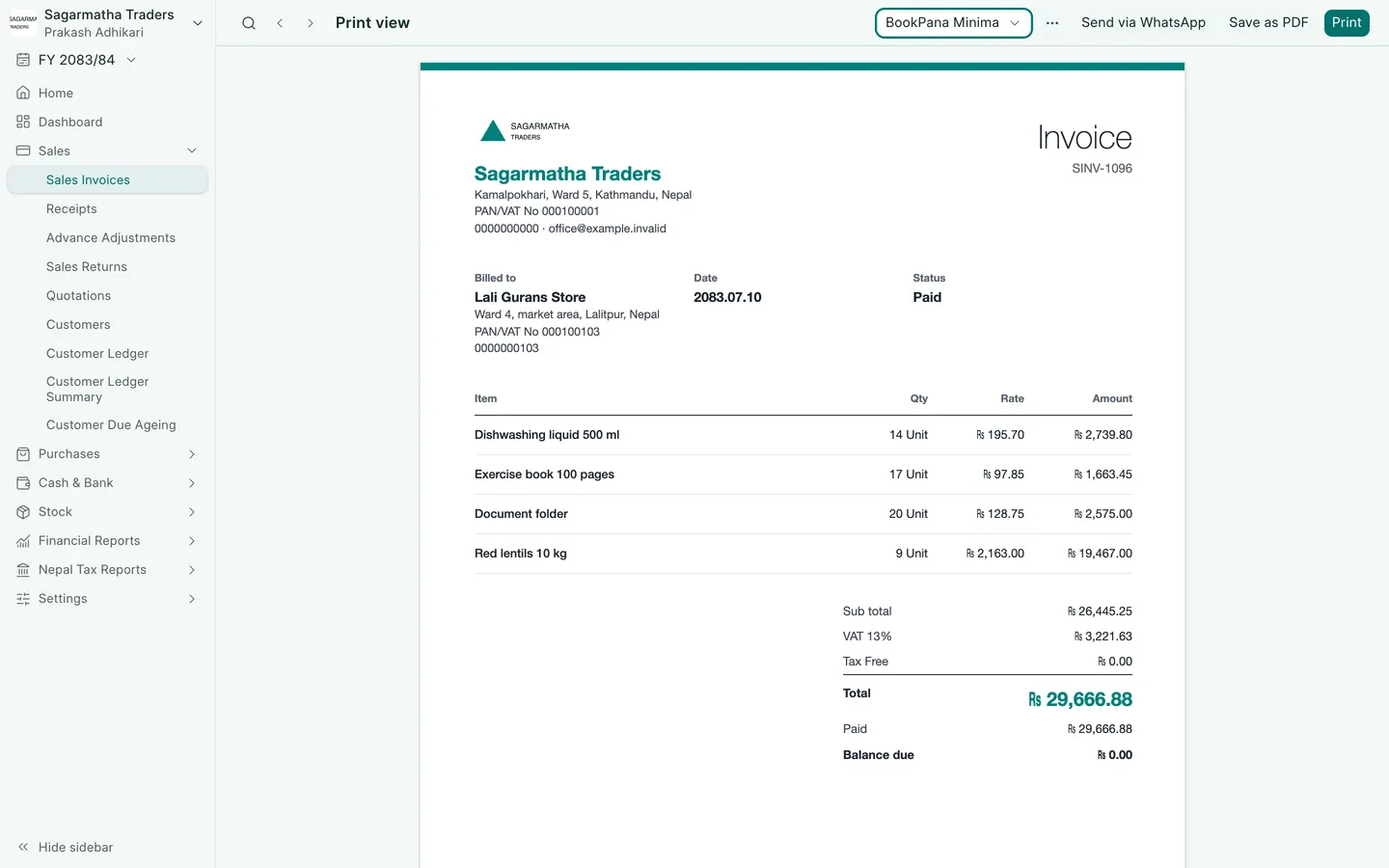
See the phone layout: Minimal invoice
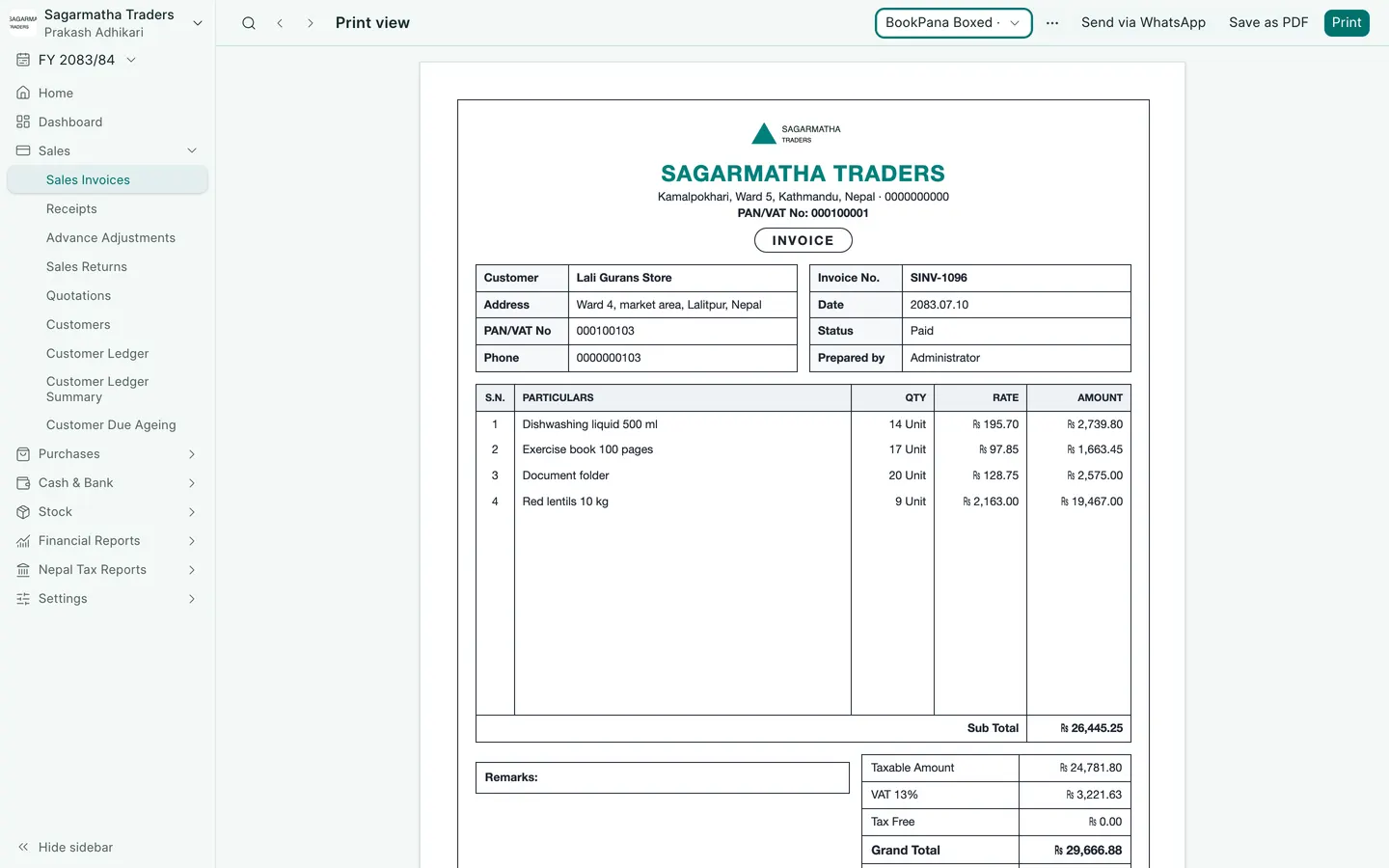
See the phone layout: Boxed invoice