Return part or all of a sale
- Open the submitted sales invoice being returned.
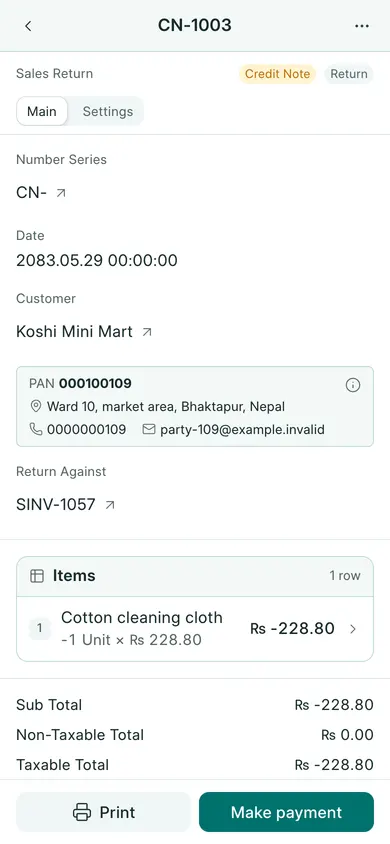
- Choose Create → Return, or More actions → Return on a phone. This is available when invoice returns are enabled and there is something left to return.
- Check Return Against and the customer. The return uses its own credit-note series, normally CN-.
- Keep only the goods being returned and review the return quantities, rates and tax. The mapped return uses negative quantities and totals; keep the return signs.
- Check Date in the working year. Choose Save, confirm, then Submit and confirm.
- Find it under Sales → Sales Returns and check the customer ledger and stock where applicable.
If money is refunded
The credit note and the cash refund are separate records. If you actually pay money back, use the submitted return’s Create → Payment action (Make payment at the bottom on a phone). Check the method, amount and allocation before submitting it.
A return does not delete or change the original invoice number. If Return is unavailable, ask the owner to check return settings, permissions and the amount already returned. Do not make a second unrelated negative sale as a workaround.
If your company uses Save & Submit, that button combines the draft-save and submission steps. Review the confirmation before continuing.
In BookPana
Example screens use fictional demo data. Your records and available actions depend on your company and access.
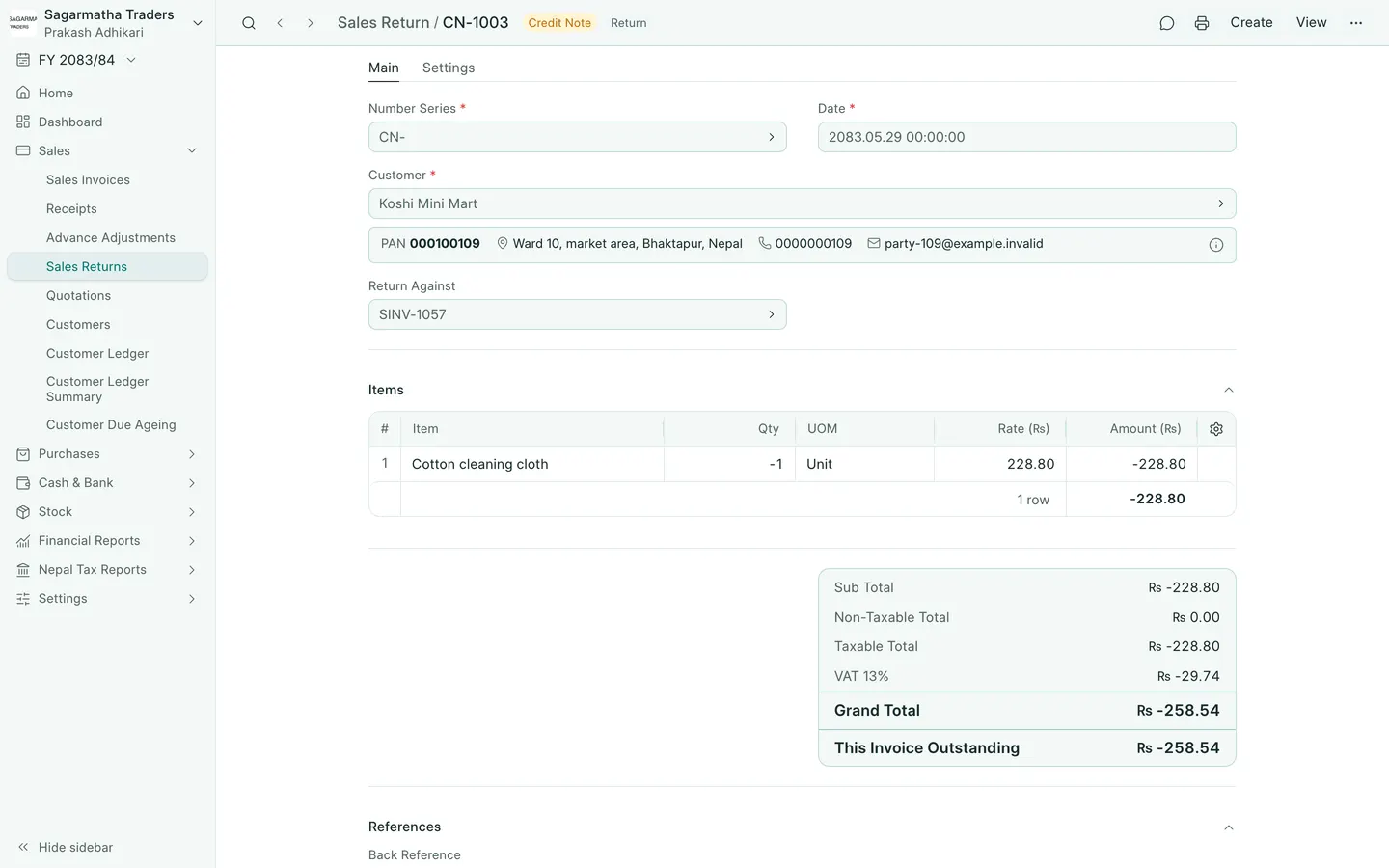
See the phone layout: Sales return