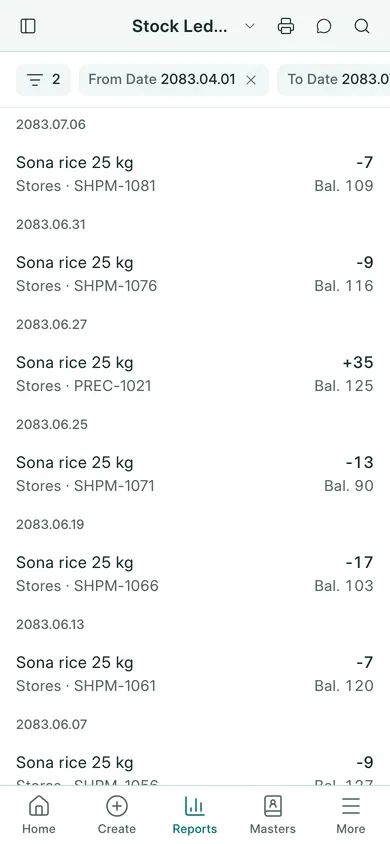
Check the balance
- Open Stock → Stock Balance. On a phone, open Reports and choose Stock Balance.
- Review the date filters and choose an item if you need one item only.
- Turn on All Items when you want the report to include every item rather than just items with activity in the period.
- Read opening, inward, outward and closing quantities. Check the unit beside the quantity.
Trace a movement
- Open Stock → Stock Ledger, or choose it in the phone’s Reports menu.
- Set the date range and select the item.
- Read each dated movement, its quantity and voucher reference. Open the reference to inspect the source transaction.
- Compare the final quantity with Stock Balance using the same item and ending date.
Stock comes from submitted stock-affecting documents. A saved draft or service item does not add counted goods. Your settings decide whether invoices move stock directly or use shipments and purchase receipts. Before correcting a difference, check that the same goods were not recorded twice.
In BookPana
Example screens use fictional demo data. Your records and available actions depend on your company and access.
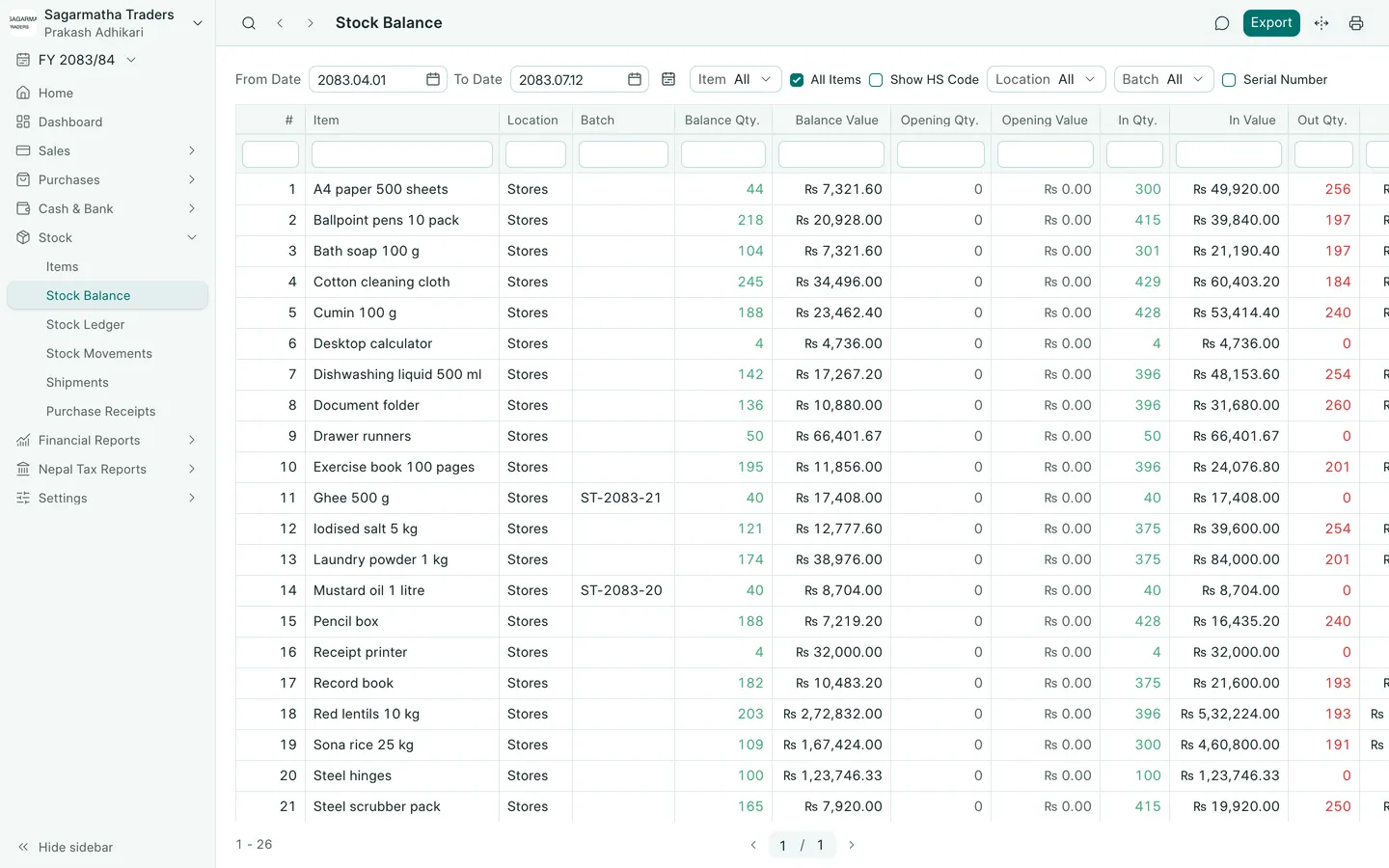
See the phone layout: Stock balance
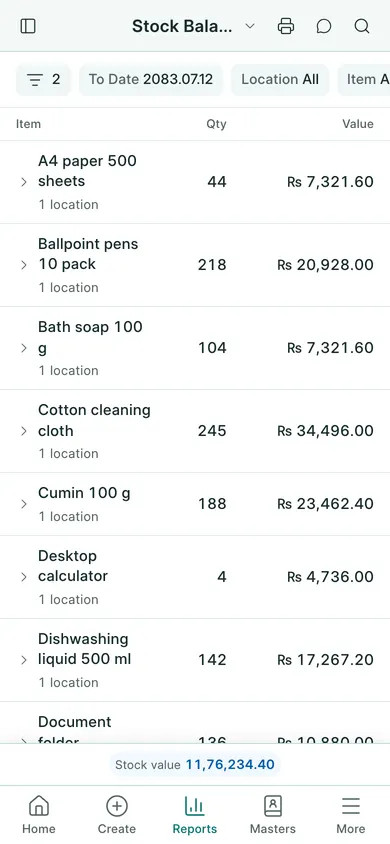
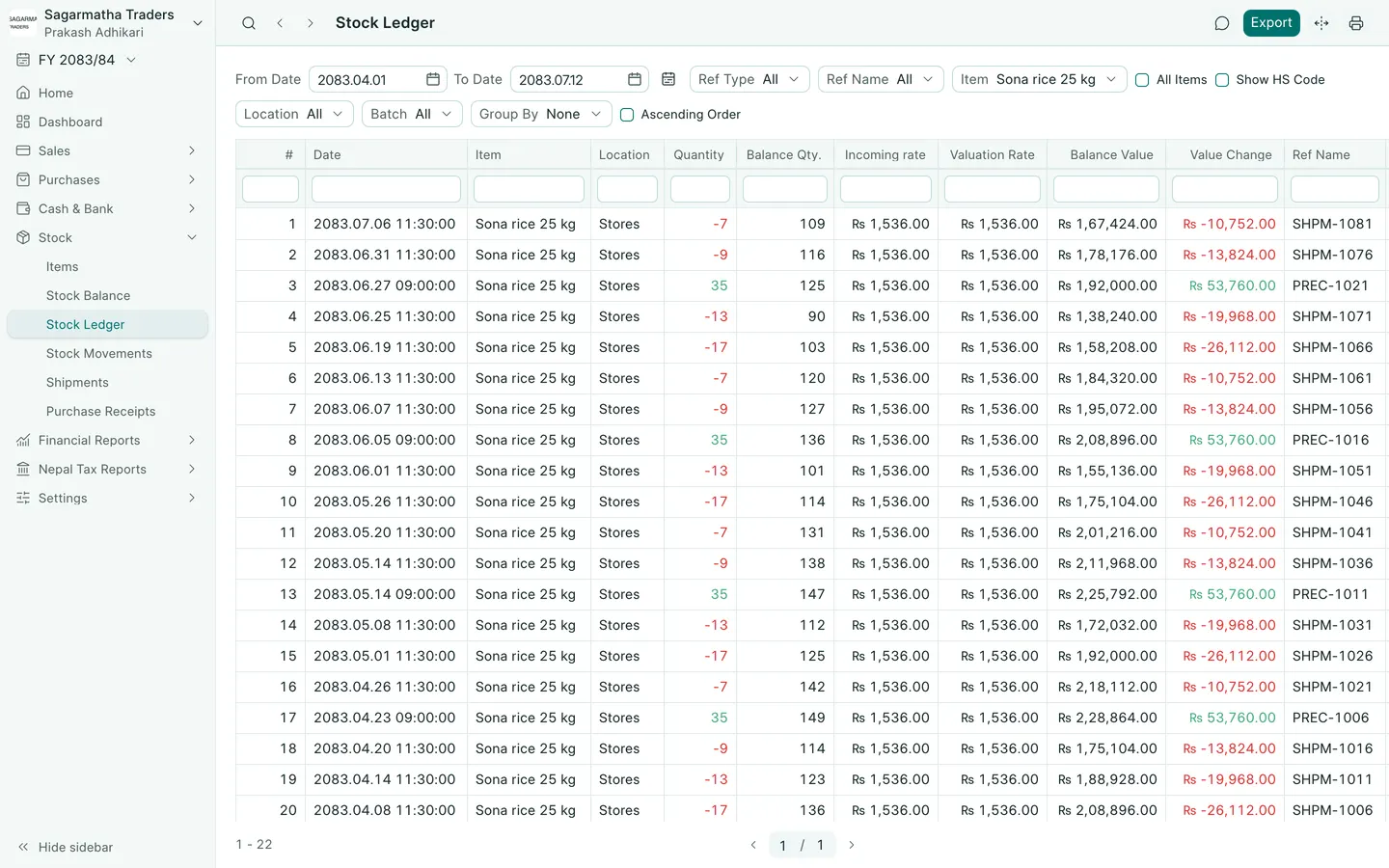
See the phone layout: Stock ledger