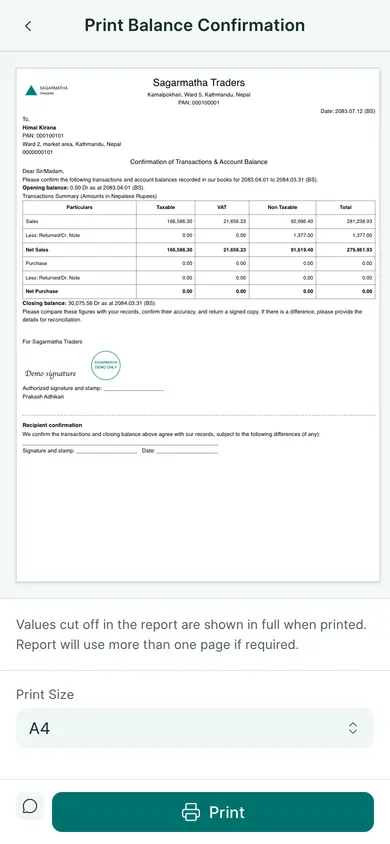
Prepare a confirmation
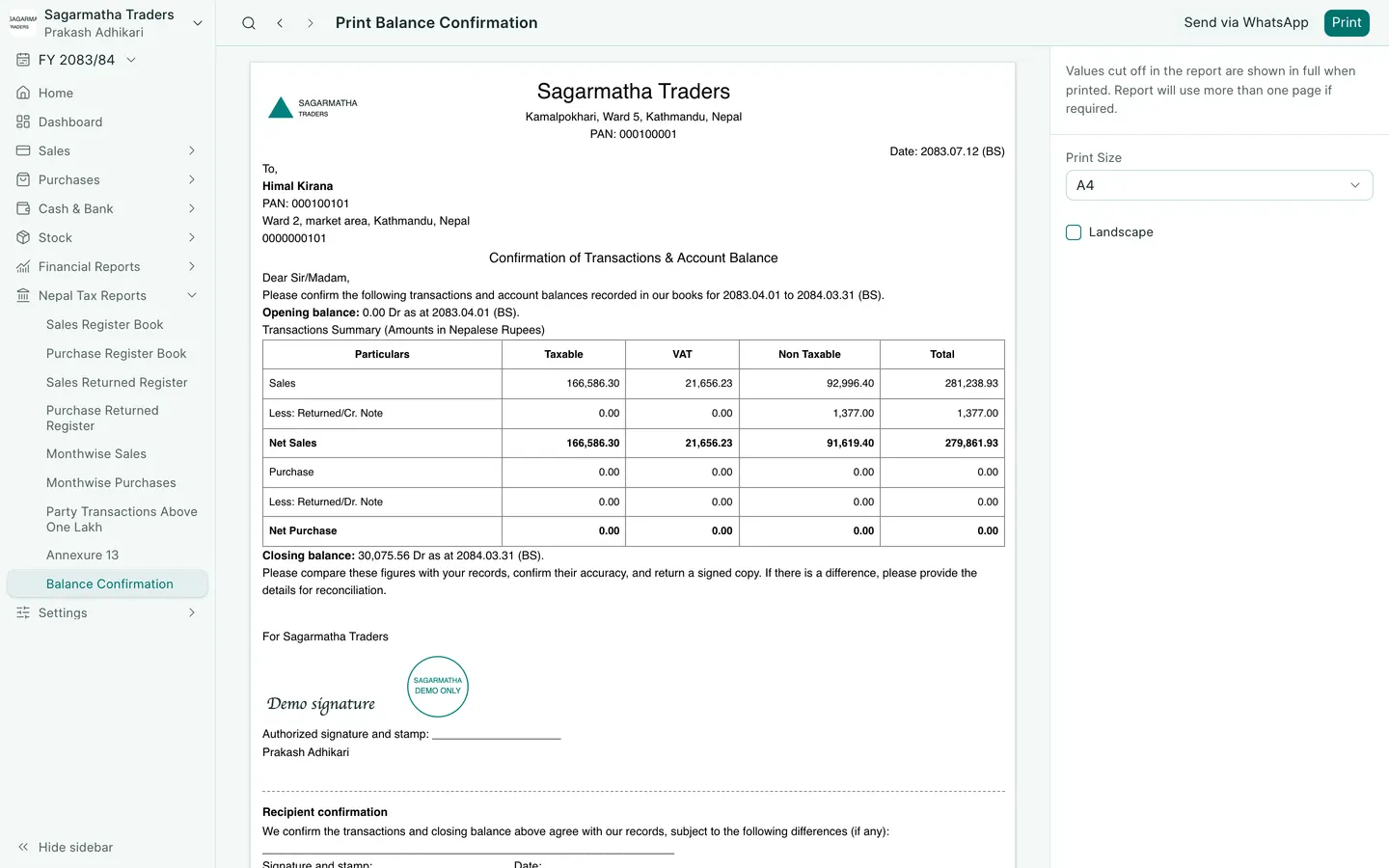
- Open Nepal Tax Reports → Balance Confirmation.
- Choose the fiscal year or date range needed for the letter.
- Enter the party’s Party PAN filter and review the matching party and figures.
- Check annual transactions and the closing balance against that party’s ledger.
- Choose Print to open the confirmation letter preview.
- Review the recipient, period and amounts. Print or save the PDF using the preview’s controls.
The letter’s table shows Sales, Less: Returned/Cr. Note and Net Sales, then Purchase, Less: Returned/Dr. Note and Net Purchase, each with taxable, VAT, non-taxable and total amounts.
Add your company marks
The letter uses your company’s print details. To add a logo, stamp and signature, follow logo, stamp and signature. Preview the letter again after saving those settings.
The screenshot is a fictional example. Confirm the party and the balance before sending a real letter. A letter does not change the ledger or record the recipient’s agreement; keep any reply with your supporting records.
In BookPana
Example screens use fictional demo data. Your records and available actions depend on your company and access.
See the phone layout: Balance and transaction confirmation