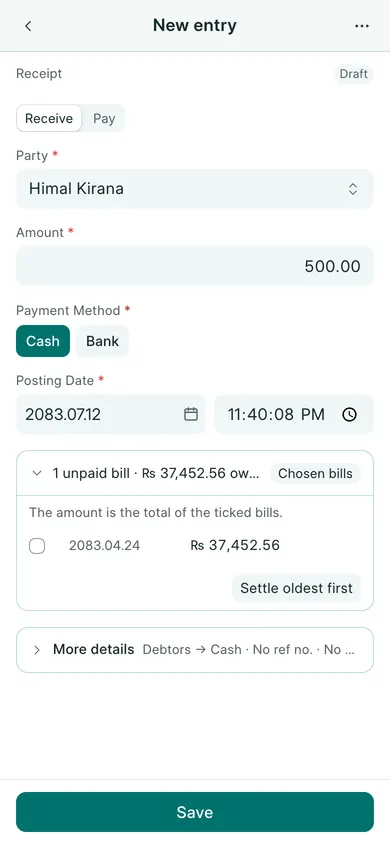
Record a customer receipt
- Open Sales → Receipts → New. On a phone, use Create → Receipt.
- Check Party and Amount. Enter only the money actually received.
- Choose Cash or Bank and the Payment Method for the account that received it.
- Check Posting Date. Enter Ref. / Cheque No. and Reference Date when needed.
- Expand the bills section. Check which invoice is being settled and its allocation. A smaller amount can settle part of a bill.
- Choose Save, confirm Yes, then Submit and confirm.
To start from a particular submitted sales invoice, choose its Create → Payment action. On a phone, tap the invoice’s Receive payment button at the bottom. That form starts with the customer and bill; some fields are hidden because the invoice already supplies them. On a computer its buttons are Save Payment and Submit Payment.
Check the result
Reopen the receipt and review its Settled bills summary. Check the invoice’s outstanding amount or the Customer Ledger. The receipt should reduce the amount still owed.
Use Open print view on a computer (Print on a phone) to give the customer a copy. Send via WhatsApp is available in the print preview. A receipt records money received; it does not create a second sale. Do not duplicate a receipt that was already made while submitting the invoice.
If your company uses Save & Submit, that button combines the draft-save and submission steps. Review the confirmation before continuing.
In BookPana
Example screens use fictional demo data. Your records and available actions depend on your company and access.
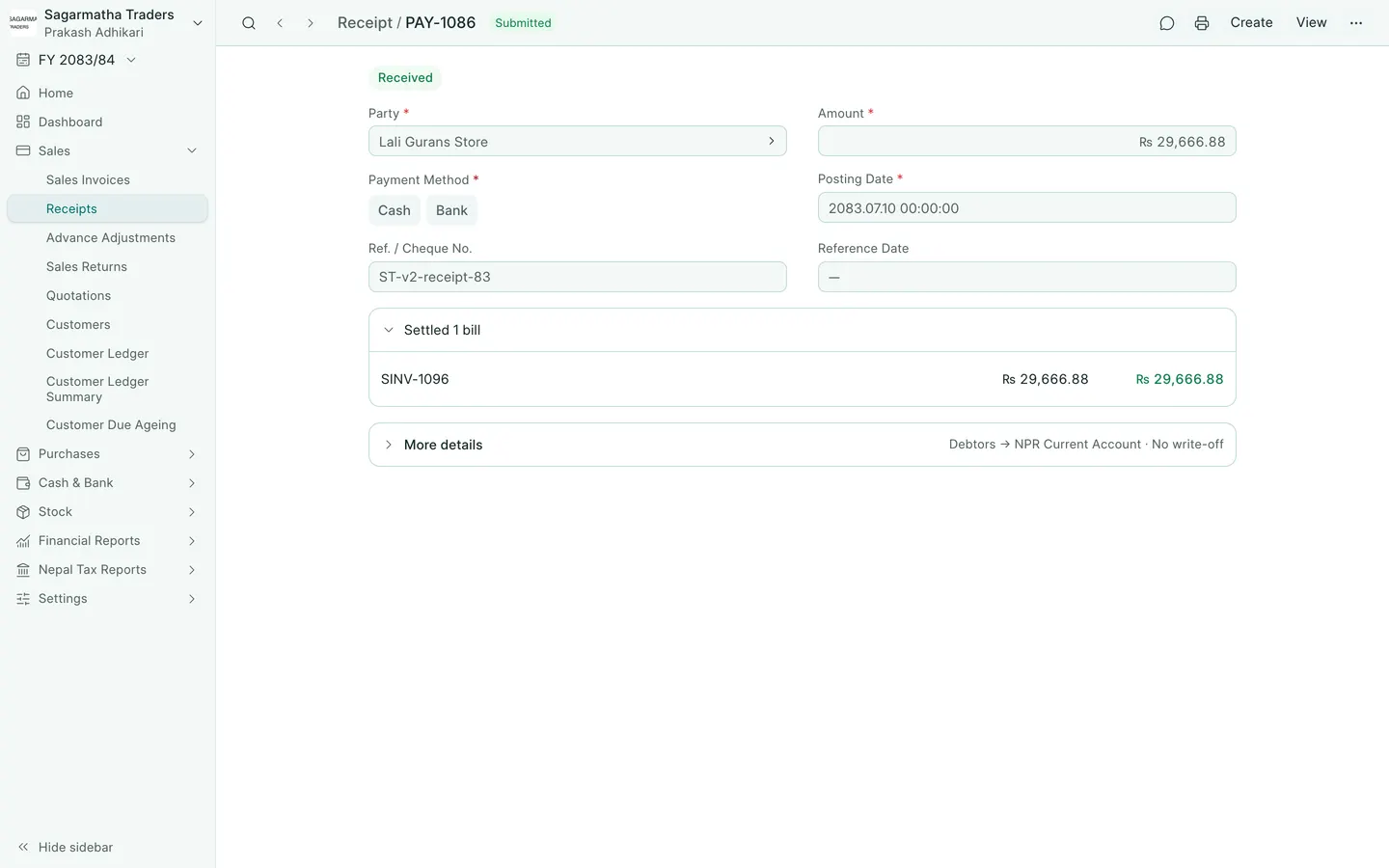
See the phone layout: Customer receipt
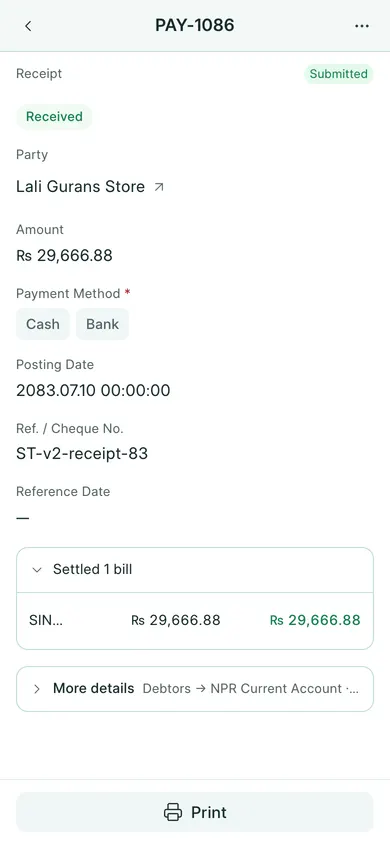
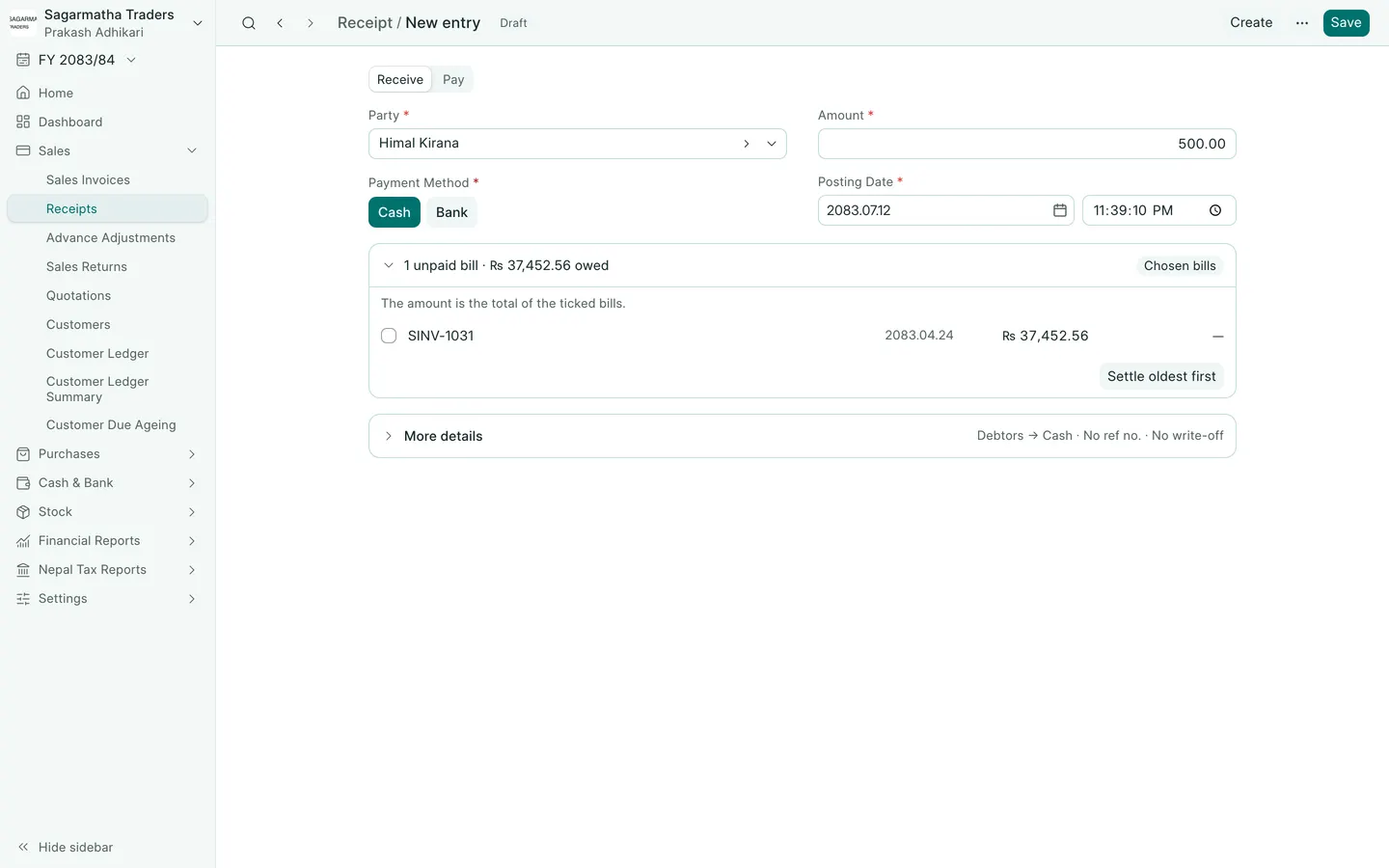
See the phone layout: Receipt and bill allocations