Have your email and password ready. The account owner gives team members their first password.
Sign in and open a company
- Open my.bookpana.com/login.
- Enter your email and password, then choose Continue. The sign-in page’s main heading says Sign in to BookPana.
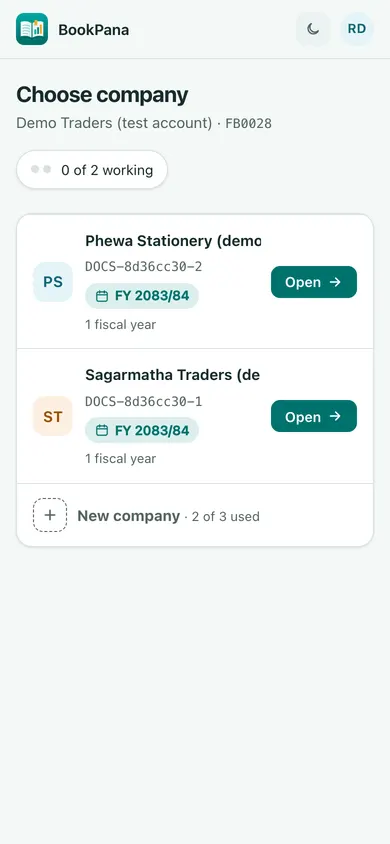
- On Choose company, find the company you want and choose Open. You see only companies you can access.
- In Books, check the company name and working fiscal year before entering anything.
If no companies appear, ask the owner to give you access. If all working seats are occupied, wait for a seat or ask the owner to free one.
Keep a default company
On a computer, point to a company row and choose its star, labelled Make default. You can also focus a row with the arrow keys and press D. The chosen company shows Default and opens after your next sign-in. Choose the star again to stop opening it automatically.
Open the portal’s Your companies page when you want a different company. A renewal reminder can appear before an automatic opening.
Use the moon or sun button in the portal header to switch between light and dark. This choice is remembered in that browser. The Books app has a separate theme setting.
In BookPana
Example screens use fictional demo data. Your records and available actions depend on your company and access.
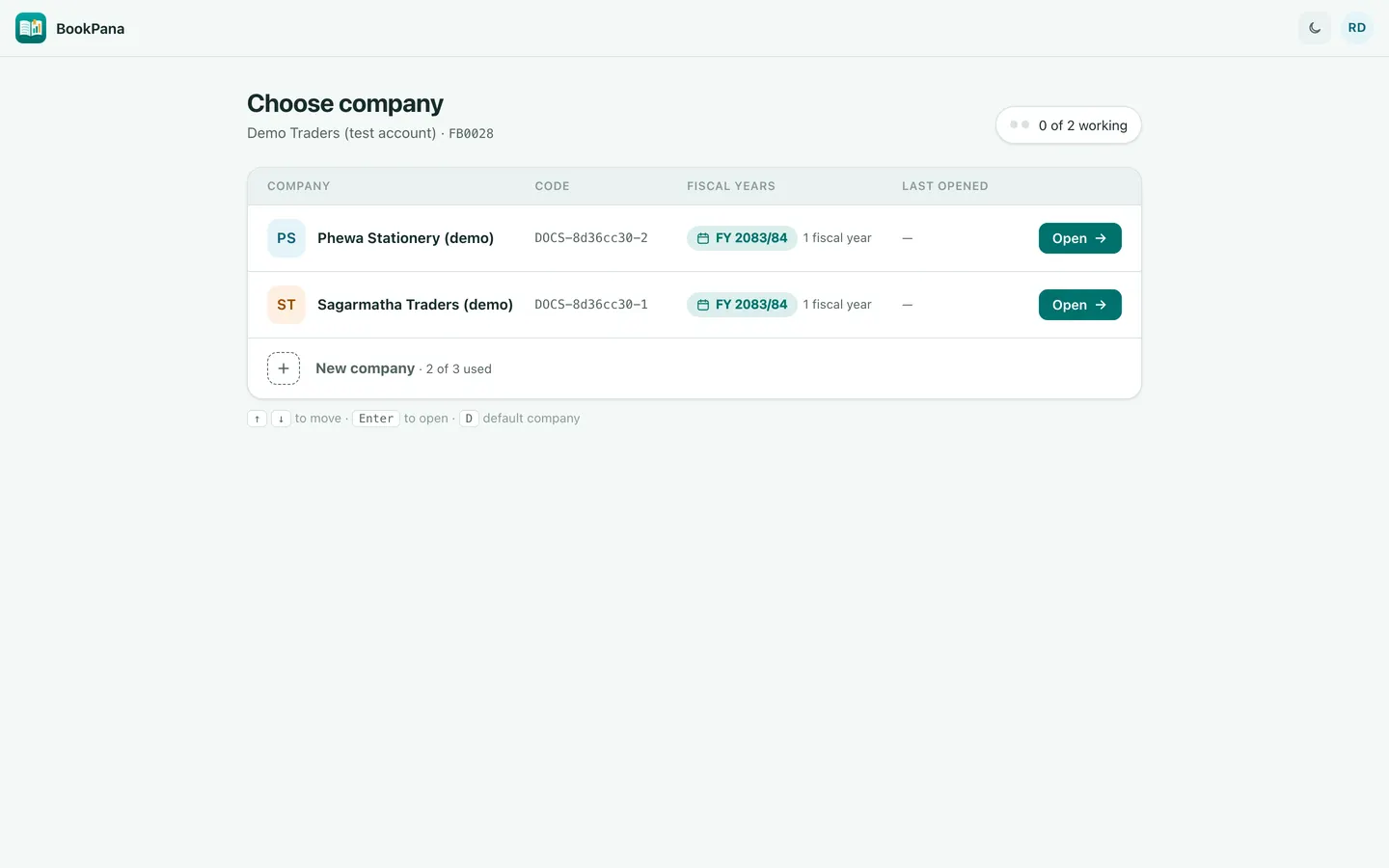
See the phone layout: Choose company